FanX Product Updates
Subscribe to schedules
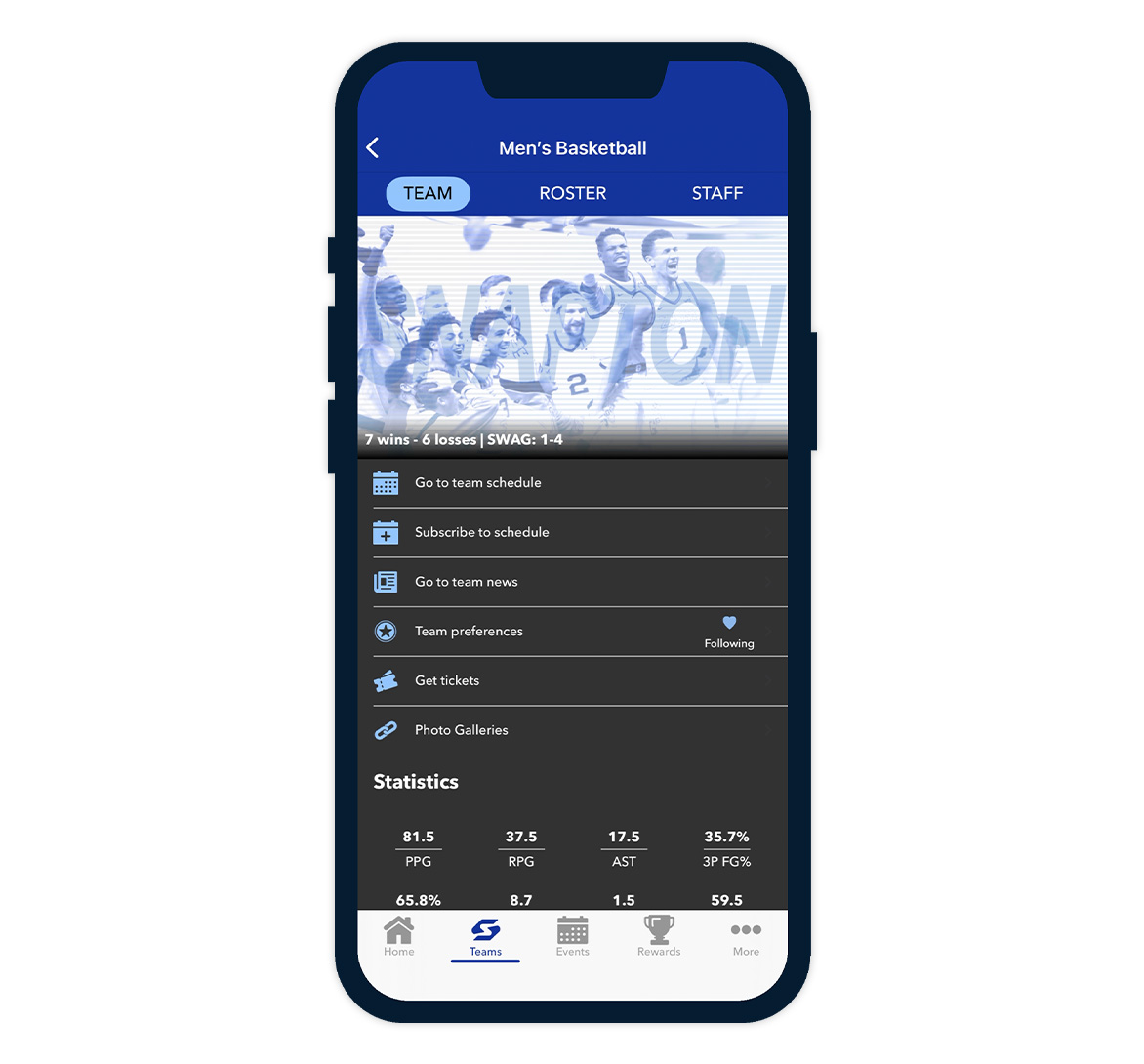
Users can now subscribe to team calendars directly from the FanX app and sync events to their preferred calendar service, including Google (Gmail) and iOS Calendar. Once subscribed, events automatically update so schedules stay current without any manual refresh.
- Go to your Team page
- Tap Subscribe to schedule
- You’ll be taken to the Apple Calendar app
- Tap Find to load the events from the prefilled calendar link
- Review the schedule preview (optional)
- Pick which calendar to add the subscription to (optional)
- Tap the checkmark to confirm
Android flow:
- Go to your Team page
- Tap Subscribe to schedule
- Allow calendar access if prompted
- On Schedule Events, all games are pre-selected (you can deselect any you don’t want)
- Tap Add to Calendar
- Choose which calendar to add to
Mobile Score Entry
Admins can enter scores in real-time during the game or after it’s complete, keeping fans, families, and the community engaged with live updates right from the sidelines all season long.
How to add scores in your school’s app:
- Log in using your App Portal Admin credentials
- Tap on an event from anywhere in the app
- Tap “Scoring”
-
Enter each team’s score
(Optional) Select the checkbox to mark the game as complete - Tap “Save”
New Feature: Inventory Tracking for Rewards Items Now Live
Rewards users can now:
- Set and manage total inventory counts per item
- Choose whether items are shown based on availability
- Track how many of each item have been redeemed and how many remain

June 10 update: Rewards users must take Action
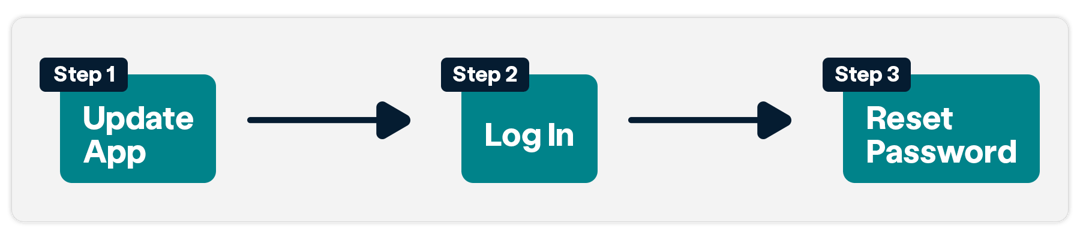
As of June 10, apps that incorporate Rewards into their program have been upgraded to a more secure, streamlined login system using Single Sign-On (SSO). To continue taking part in the rewards program in the app, users will need to take these steps:
- Update the FanX app to 172.19.0 in the App Store or Google Play
- Log in with their current email and password
- Follow the prompt to reset their password
Head-to-Head Displays (Team Level)
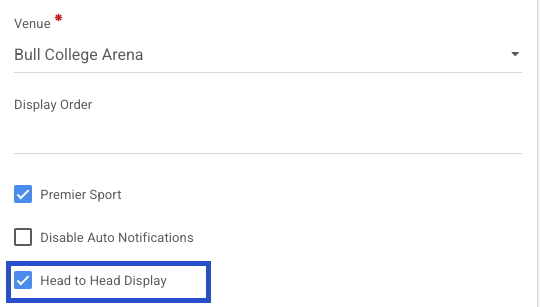
Users will have the ability to set all games for a specific team as head to head by checking a new option in the Team page.
Here’s how to use it:
- Access a TEAM
- Under TEAM INFO, scroll to the bottom of the container.
- Check the ‘Head to Head’ checkbox.
- Once checked, all games for that team will be set as head to head
- If not checked, the user can still do that at the GAME level.
New Feature: Head to Head displays at Team Level
The “Head to Head” feature allows users to set all games for a specific team as head-to-head matches. This feature is mainly designed for tournament apps or situations where the app is used for hosting a neutral-site tournament game.
Cloning Notifications
Cloning notifications allows users to quickly replicate a previously sent notification, saving time and effort when creating similar messages. When cloning a notification, all details from the original notification are copied over, including the deep link, but without the scheduling information.
FanX Portal Transition to Single-Sign On
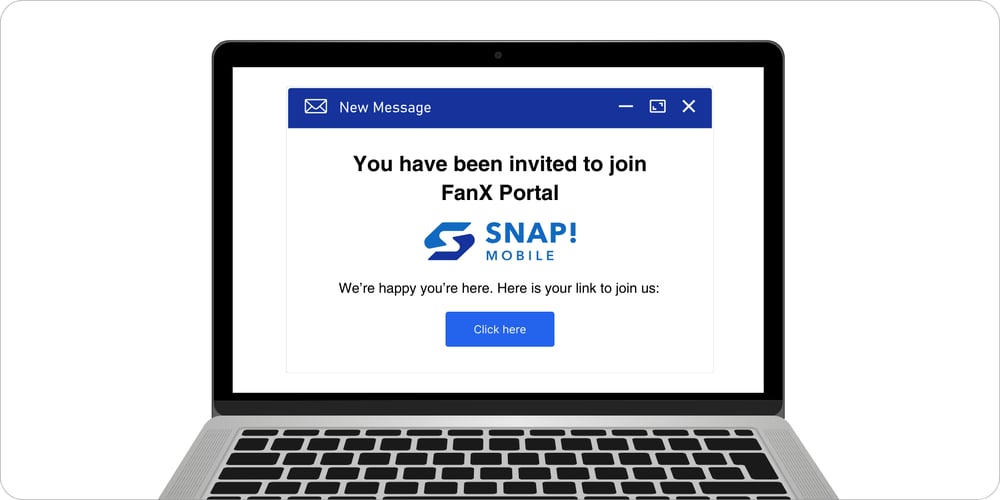
As part of the update, you should have received an email invitation to join the FanX Portal. Make sure your school or district IT team has whitelisted no-reply@snapraiseinc.com so you don’t miss the email to log in! Once you receive the email, select the “click here” button to continue.
If you already have a Snap! Mobile account, you can simply log in to access the FanX Portal. If you don’t have a Snap! Mobile account, you’ll be prompted to create a password. After you create your password, you’ll be redirected to the FanX Portal.
Please note: All existing bookmarked URLs will automatically redirect to the Snap! Mobile SSO login page.
If you have any questions, reach out to our help desk at 276-531-9260 or email fanx.support@snapraise.com.